In an increasingly connected world, users are looking to optimize their digital space to store and access their data with ease. The Freebox Delta, with its built-in hard drive, meets this expectation by offering a local storage solution that is accessible and versatile. Mastering the configuration and use of this drive can transform the multimedia experience at home. It not only allows you to keep movies, photos, and music in one place but also to create a home server to share files between different devices, even remotely, for a data management that is both simple and effective.
Initial Setup of the Hard Drive on the Freebox Delta
The Freebox Delta, in its role as a home server and NAS (Network Attached Storage), offers the possibility to install up to four hard drives using its SATA slots. For users eager to know how to activate the Freebox Delta hard drive, the procedure is both practical and accessible. First, make sure you have a compatible drive, such as Seagate BarraCuda, Western Digital Blue, Seagate FireCuda for HDDs, or SanDisk SSD PLUS, Samsung Internal SSD 860 EVO, and Samsung Internal SSD 860 QVO for SSDs.
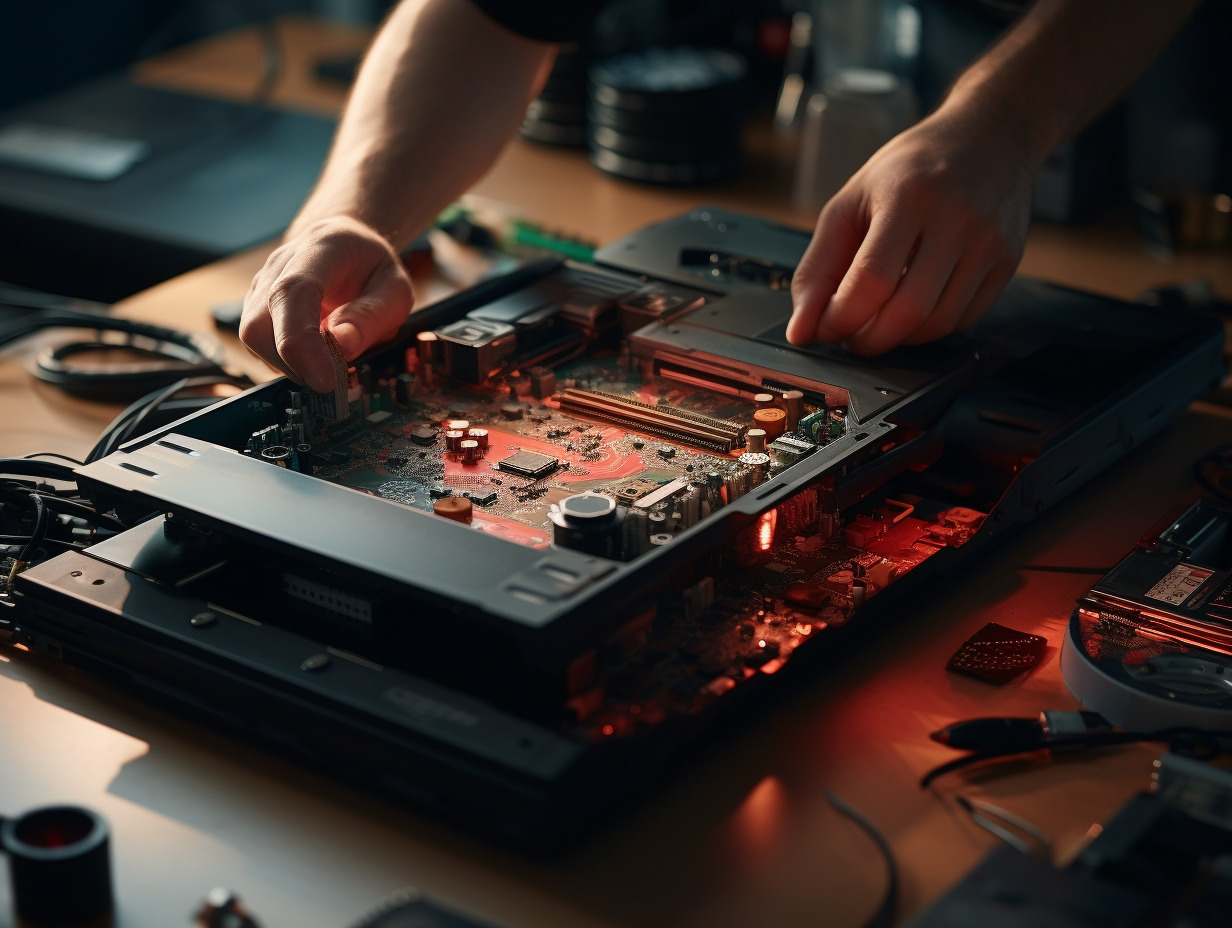
The installation of the hard drive in the Freebox Delta begins with opening the cover to access the SATA slots. This step requires special attention to avoid damaging the internal components of the box. Once the cover is removed, insert the chosen hard drive into one of the available slots, ensuring that the connection is properly established.
After the physical installation, the software configuration becomes a priority. Log in to the management interface of your box, often referred to as Freebox OS, where you will find the necessary tools to format and set up your new hard drive. Follow the on-screen instructions to finalize the setup, a process that may vary slightly depending on the type of hard drive you have selected for the Freebox Delta.
Once the hard drive is configured, it appears as an additional storage volume within your home network. You will then be able to fully enjoy the benefits of extended local storage, accessible from all your devices connected to the Freebox Delta, with the speed and reliability provided by modern hard drive and SSD technologies.
Advanced Management and Use of the Freebox Delta Hard Drive
For users comfortable with technology and looking to maximize the capabilities of their Freebox Delta, the Freebox OS operating system reveals advanced features for hard drive management. Setting up a RAID configuration is one of these options, allowing multiple hard drives to be combined to enhance performance, redundancy, or both, depending on the chosen RAID level.
The Freebox Delta transcends the simple function of an internet box to become a true NAS server. Network storage becomes a breeze, allowing secure remote access to your files. Whether for document sharing, streaming multimedia content, or backing up important data, this NAS capability opens up new horizons in terms of flexibility and domestic or professional use.
Let’s address data security, a topic that concerns every user aware of the inherent risks of digital storage. The Freebox Delta, thanks to its architecture and Freebox OS, offers solutions to secure your data. Beyond the previously mentioned RAID configuration, various backup and encryption strategies can be implemented to prevent any loss or unauthorized access.
The advanced management of the hard drive includes monitoring and optimizing storage space. The tools integrated into Freebox OS allow you to track the health status of your drives, the used and available space, as well as manage different volumes or partitions. This overview, accessible via a clear and intuitive user interface, facilitates the maintenance and proper functioning of your storage system within the Freebox Delta.