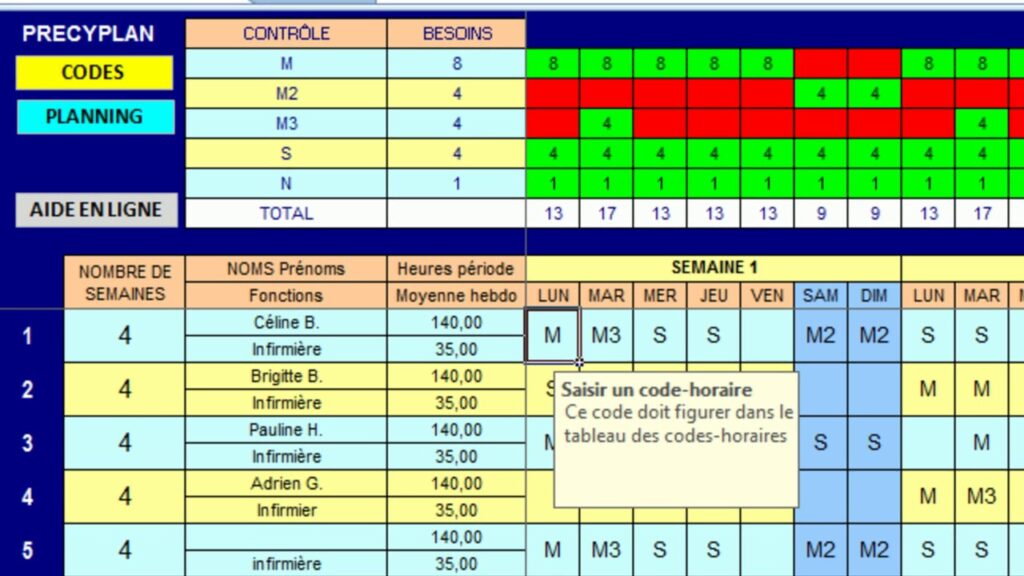
The schedule is an essential working document for the effective management of a company’s human resources. Thus, it is a planning tool for the various tasks to be executed while respecting the number of working hours of each employee and the role assigned to them. It is therefore useful for both employers and employees. Excel is one of the most widely used software for creating a work schedule. Through this article, you will learn how to quickly create a work schedule in Excel.
Creating the main axes

As soon as you open a blank document in Excel, the first thing to do is to create the two axes that will form the basis of your future schedule. For this, the vertical axis or Y will represent your employees, and the horizontal axis or X will represent the working hours of the workdays.
Be sure to leave a blank line under the identity of each employee, because in Excel, each cell contains only one piece of data. However, regarding the X axis, each workday contains information in two parts: the working hours and the position to be occupied. If you have employees in your workforce who have only one position, then it will not be necessary to consider the position to be occupied.
Tip: To create a series of dates, click in the bottom right corner of a cell containing the desired date. Then, press the left mouse button and, while holding it down, drag the cursor to the neighboring cells. You have just created a logical series of dates. You can use this tip when creating a 2021 Excel calendar.
Inserting information related to working hours
Once the base has been created, the second step is to fill it with information based on your needs and the availability of the employee. For example, the cells found at the intersection of an employee’s name and a date must contain information about the working schedule of that employee based on the position they hold on that specific date. By entering all the information, you will obtain an operational work schedule for all your employees. However, to achieve an automatic table for calculating working hours and more, you will need to add other more advanced features.
Customizing the presentation of working hours

Even if you have taken all the necessary time to create a flawless schedule, if it is not well presented, your employees will not be able to read it correctly or understand it. Using borders, text positioning, bold characters, fill colors, and cell sizes can make your schedule more readable. To easily customize your work schedule, it is best to use simple features. In just a few minutes, you will be able to design a schedule that is easy to read and understand for all your employees.